


Documentation updated 2/21/25 check Alex's instructions
New video created 7.7.25
Check to see if analytics is created
25 seconds - create a new property in analytics
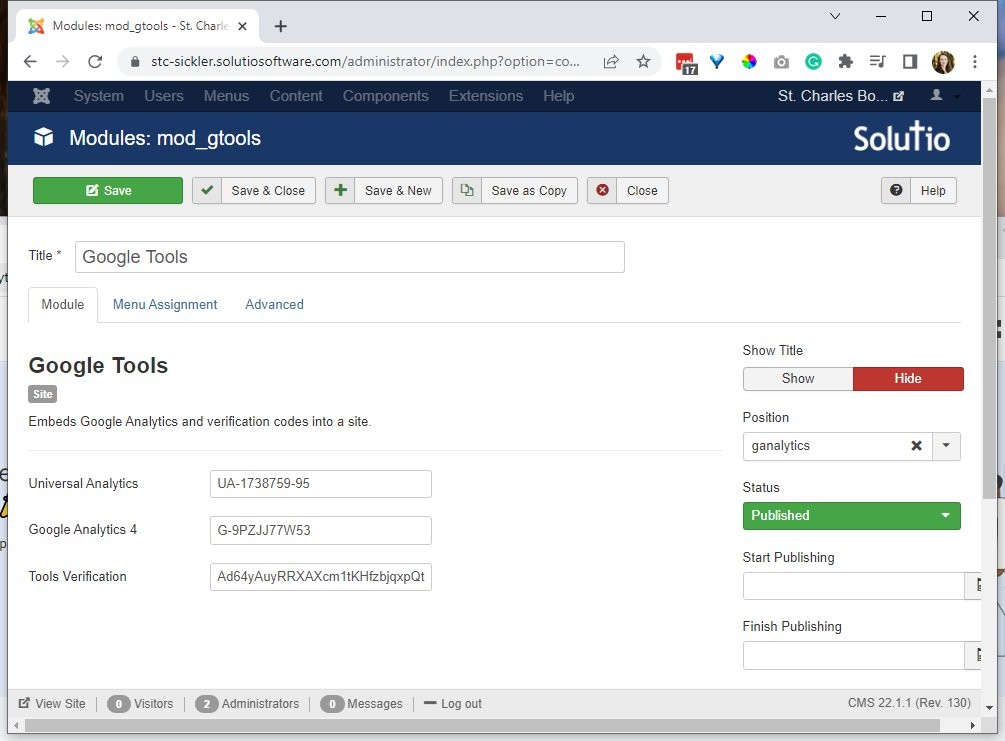
2:00 - plug in measurement ID to google tools module
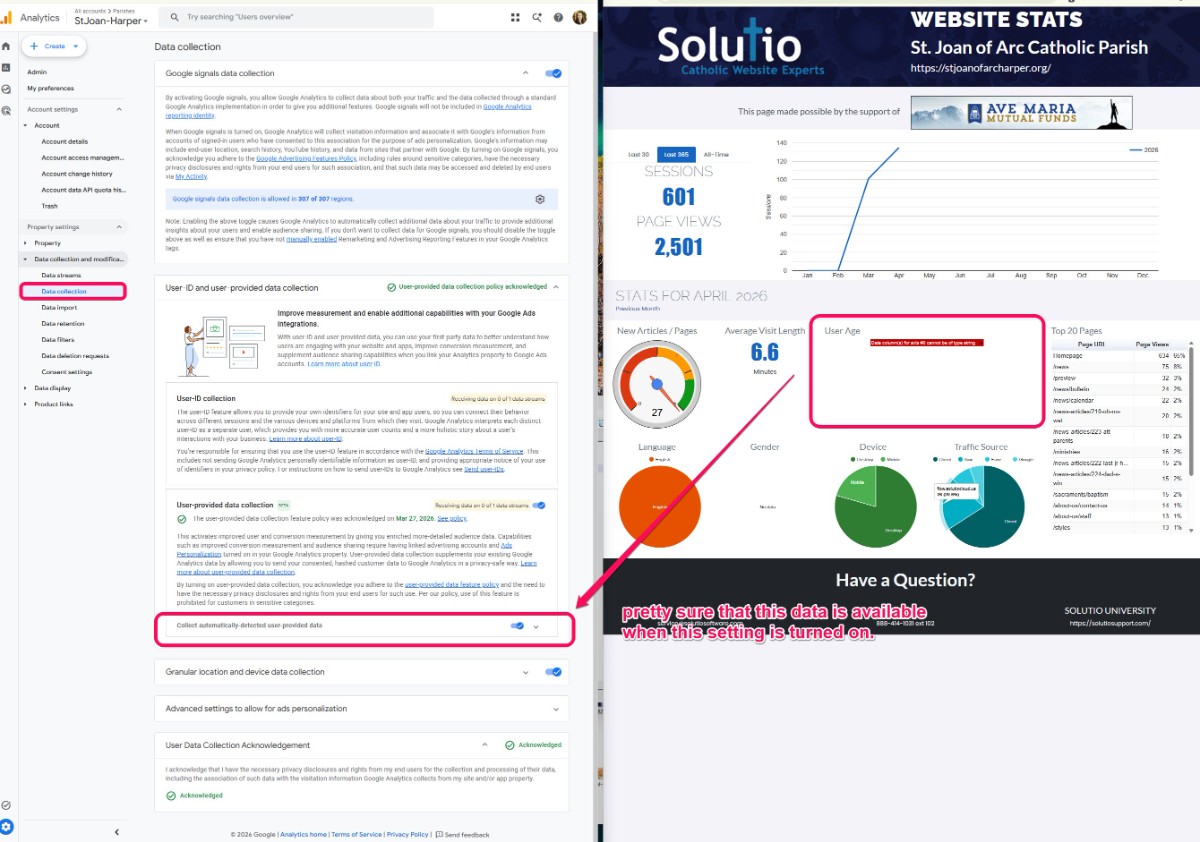
2:20 - activate google signals
3:00 - set up key events
4:00 - add webmaster verification via google search console
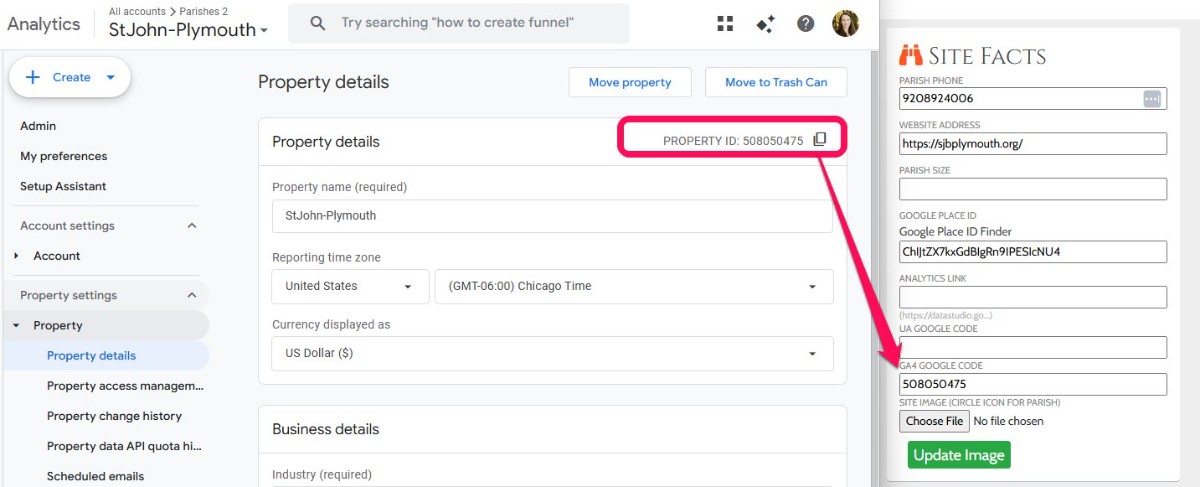
4:45 - add property ID to Site Facts in SBS profile
5:00 - update website traffic control panel icon
5:30 - update directory passcode in business directory and sponsorship articles
====================================================================================
ADD Dimensions to the new GA4 Property (Alex's instructions)
Setup
NOTE: modified 2.19.25
1. create a new GA4 Property
2. copy the measurement ID (eg, G-LK87PRH95E) and paste into the Google Tools module
3. Switch toggle to the GTag Format
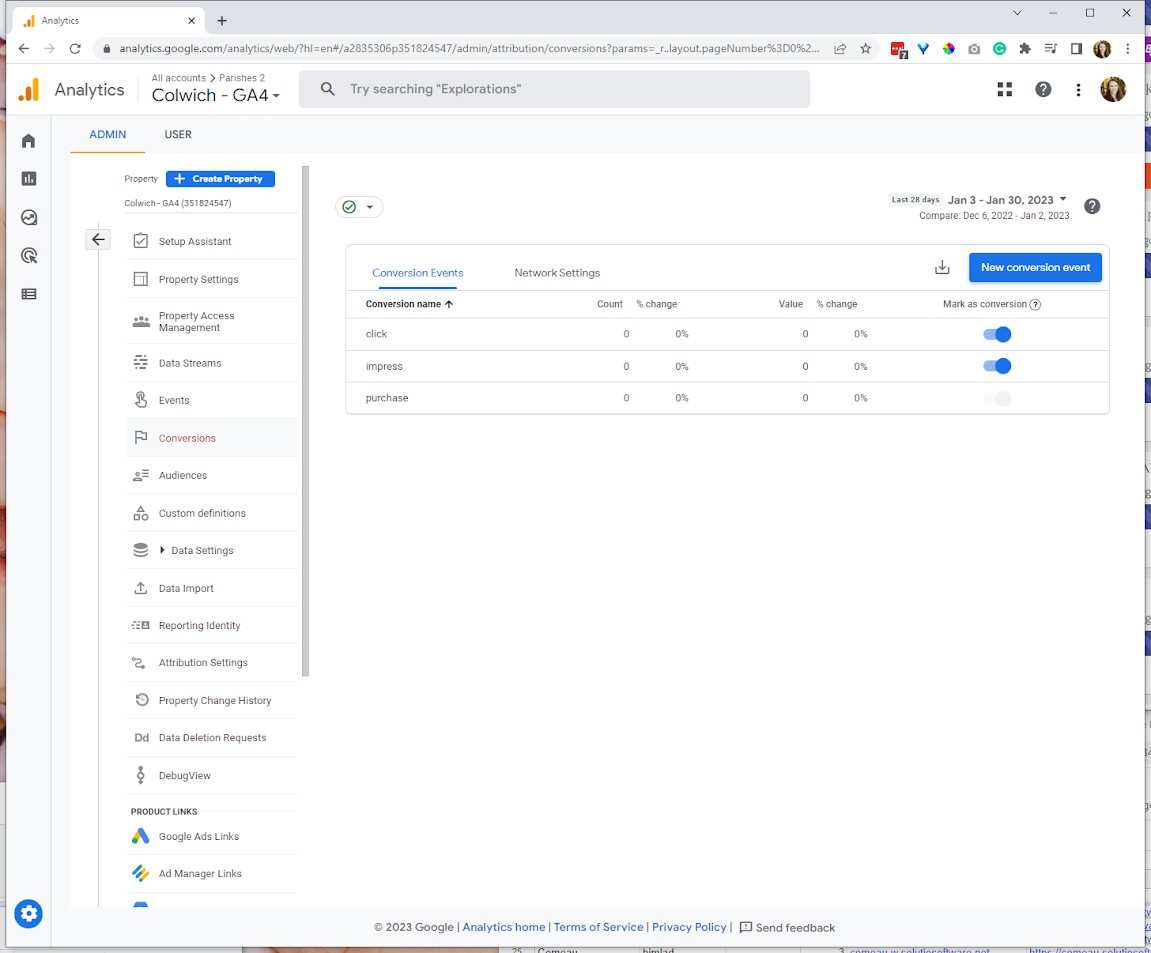
4. In Admin->Property Settings->Data display->Key Events --- CREATE new key events
click
impress
make sure the toggle the switch under "Mark as key event" is on
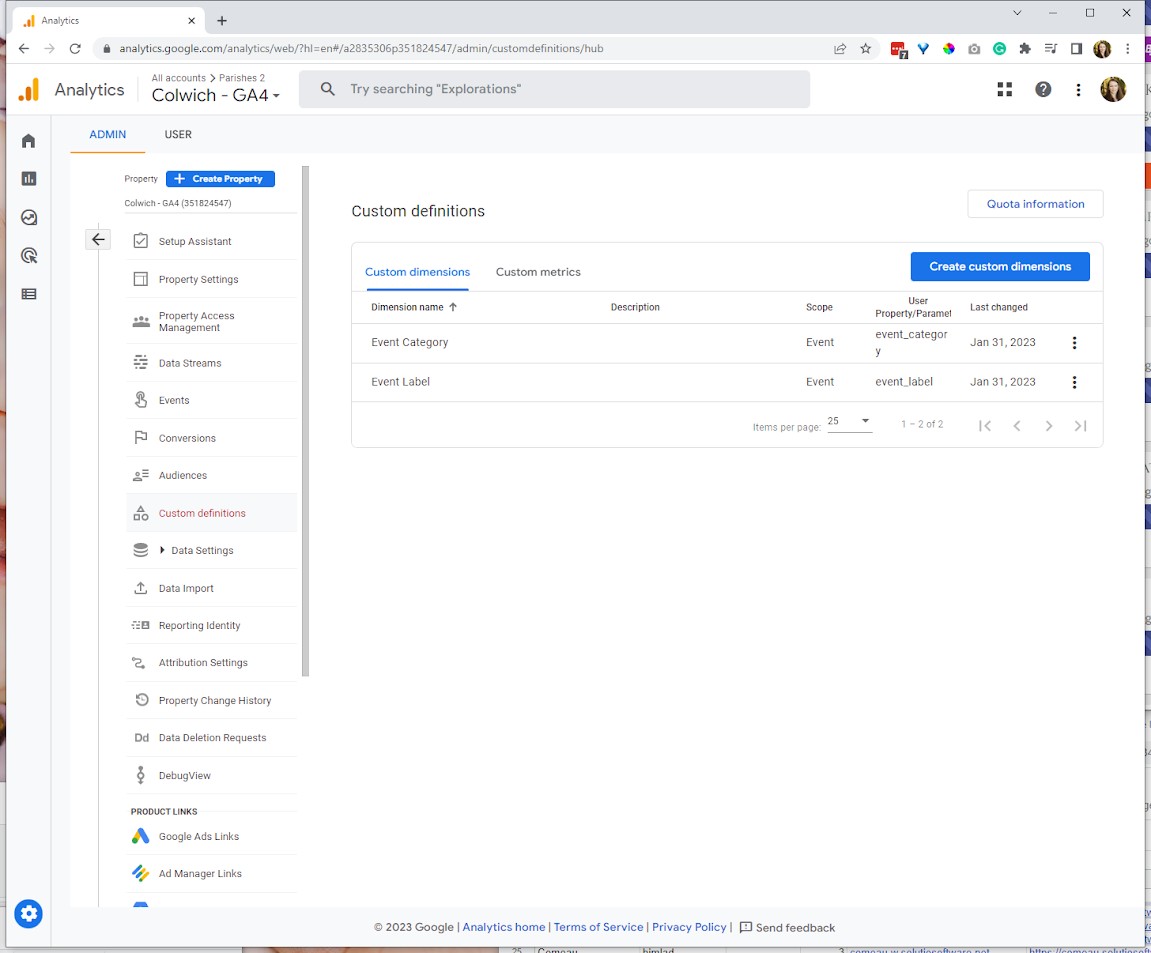
5. In Admin->Property Settings->Data display->Custom definitions add two new custom dimensions
(see below):
First Dimension:
- Dimension Name is "Event Category"
- Scope is "Event"
- Description - leave blank
- Event parameter (most important) is "event_category"
Second Dimension:
- Dimension Name is "Event Label"
- Scope is "Event"
- Description - leave blank
- Event parameter (most important) is "event_label"
Data
- to see the data go to Reports->Engagement->Event and select either the "impress" or "click" event
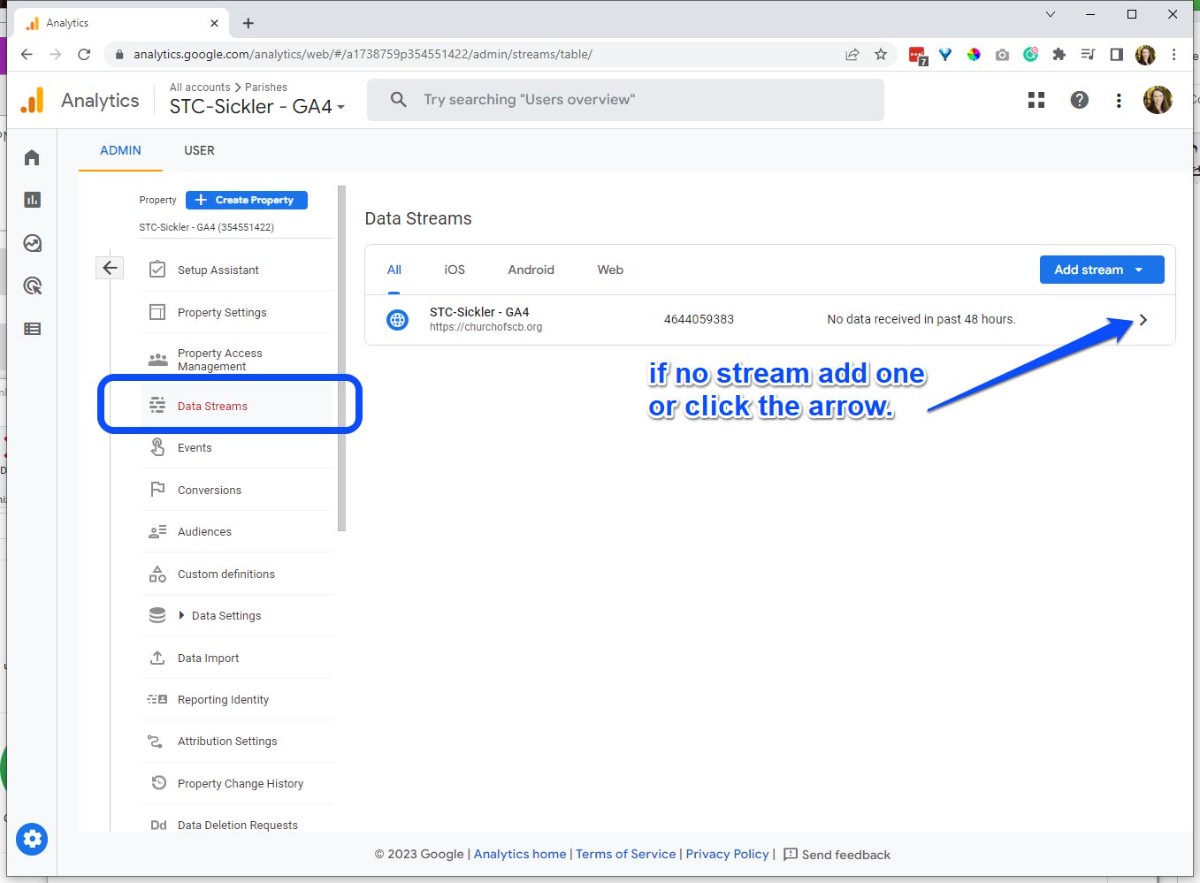
How to get the UA4 tag:
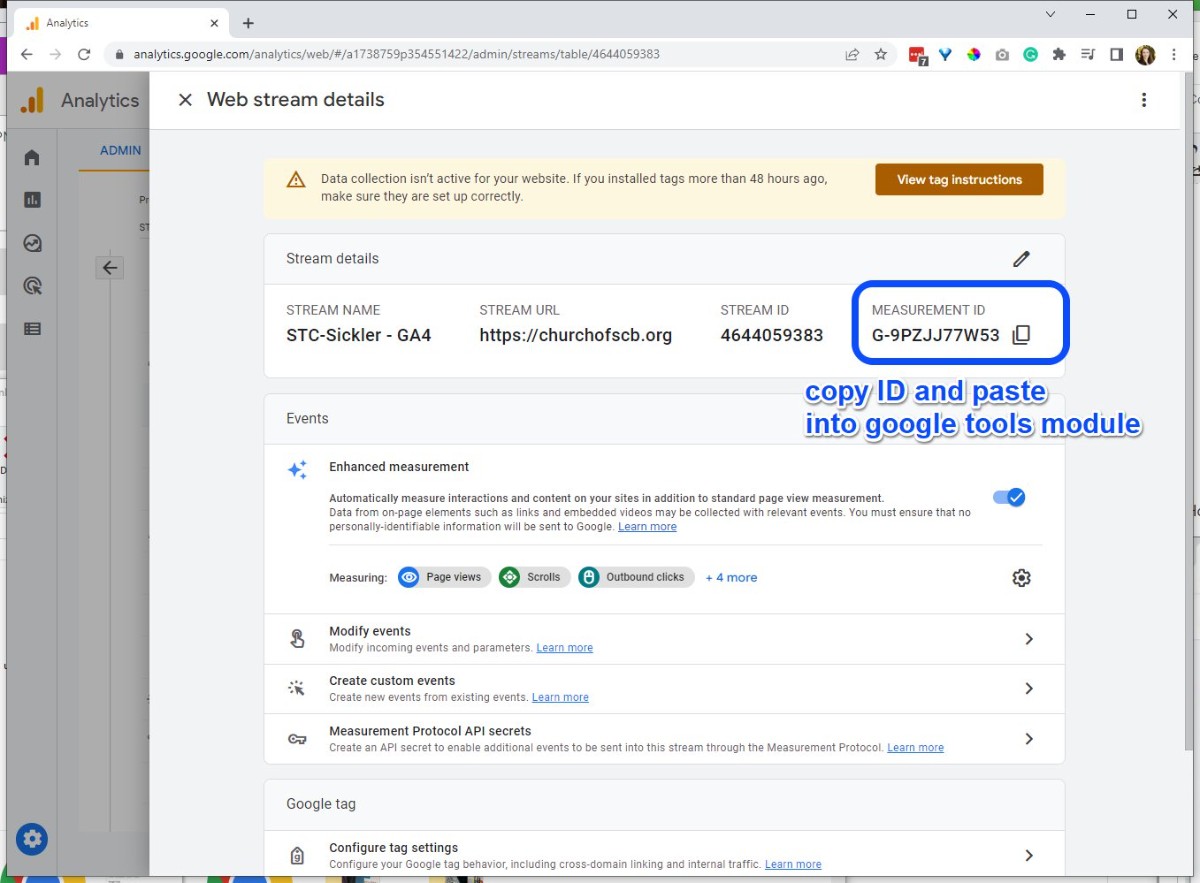
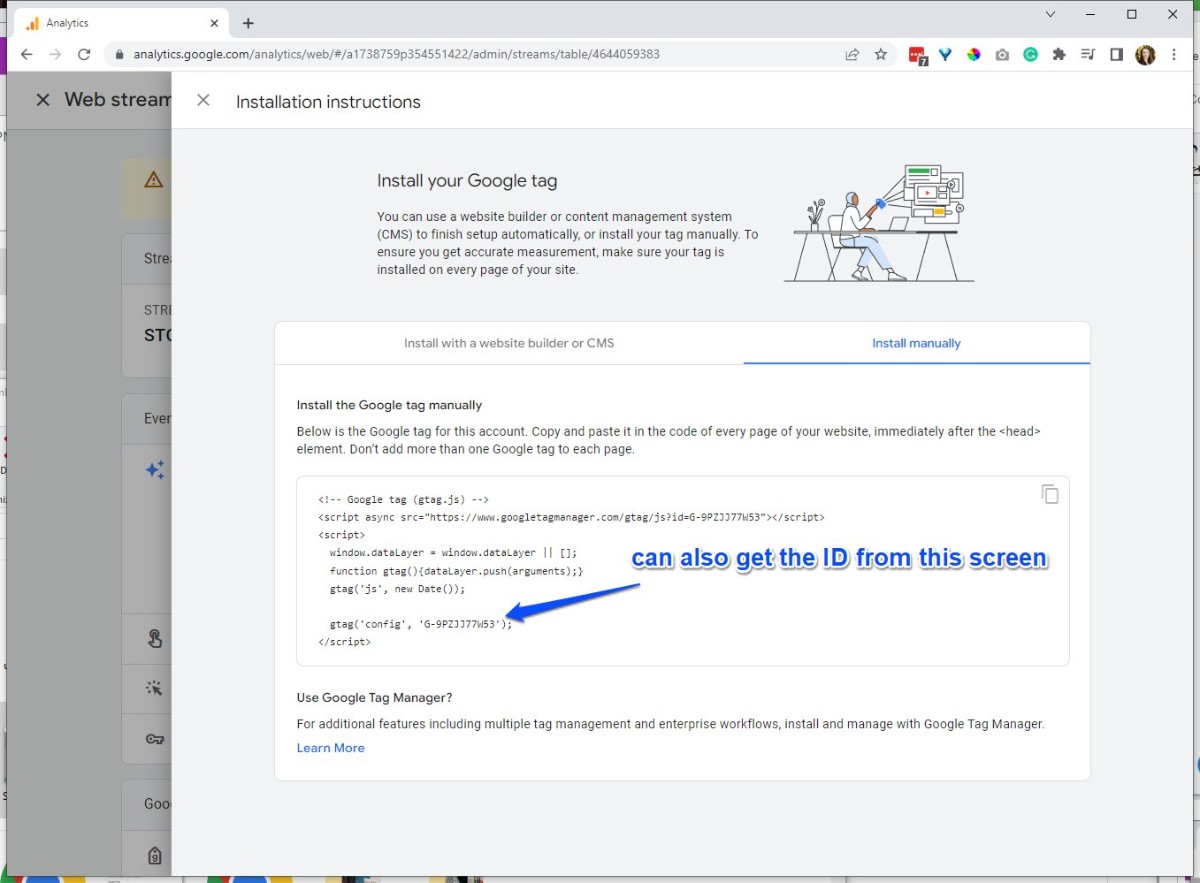
Refresh the site's home page to load the property through the internet after saving the google tools module.
Visit the home tab in analytics -- it should say that your website' data collection is active.
====================================================================================
Website Traffic
Create the Website Traffic
Before creating a website traffic data source and report, you must create Google Analytics Profile and Google Analytics Filter.